README
Snipd Plugin Usage Guide
1) Quick Access
Click the Snipd icon in the left navigation bar. This will open up the default Base.
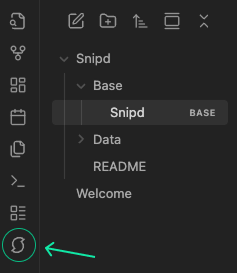
2) Base file - Main Entry Point
The plugin automatically creates a Snipd base file with 2 views:
- Podcast cards in a visual card view
- Podcasts in a table view
Both are ordered by thelast snip date.
You can modify the Base views and create your own. See the official Obsidian guides.
Resetting the Base file
If you'd like to reset the Base file to the latest default version, simply delete the Base file and trigger a new sync.
3) File & Folder Structure
Here is the file structure of the content that would be updated by the plugin:
Snipd: # (or your own Base Folder name)
	Base:
		Snipd.base # this is the default base file created by the plugin
	Data:  # folder containing the raw data
		{Show title}:  # folder for the podcast show
			{Episode title}.md # Markdown file for the episode
3) Sync
How does the sync work?
Each time a sync is triggered, the plugin checks whether you have created or edited any snips in the meantime. If that is the case, one of two things will happen:
A) Entire Episode Markdown File is Replaced
If you have not edited the Markdown file of the episode, or if no Markdown file for the episode exists yet, then the plugin will replace the entire episode file.
For example, if you deleted any snips in the Snipd app, they will not be present in the new episode file anymore.
B) New Snips Are Appended to the Episode Markdown File
If you have edited the episode Markdown file, then the file will not be replaced. Instead, new snips will be appended to the end of the file.
Some properties like cnt_snips will still be updated, but all other content remains as is.
For example, in this case, if you deleted an old snip that has already been synced, then this snip will not be removed from the episode file. You would have to manually remove it yourself.
Other comments
- If the Bases file or this readme file are deleted, they will be recreated during the next sync. This way, you can reset these files to the latest default version.
How to trigger a sync
Automatic Syncing
In the plugin settings, you can choose to automatically sync every time you start the Obsidian app (turned on by default), and/or sync at a given fixed interval.
Manual Syncing
You can trigger a sync manually:
- Inside the plugin settings by clicking on the "Sync now" button.
- By using the "Snipd Official - Sync now" command.
If a sync is already ongoing, this will not do anything.
4) Custom Formatting
Inside the plugin's settings, go to "Custom formatting" and click "Configure":
- Episode filename template: Customize how episode files are named
- Episode template: Control how episode files are formatted
- Snip template: Control how individual snips appear
For each segment, you can write your own custom format and use various variables provided by the plugin.
Support & Feedback
If you encounter any issues, have questions or want to pass along feature requests, please contact us via the in-app feedback button inside the Snipd mobile app.
You can find it in "You" -> Settings -> Feedback.
Note: This plugin requires a Snipd account to access the API. You can create a free account inside the mobile app.
Get the Snipd app