Bash Scripting Tutorial for Beginners
Description
Learn bash scripting in this crash course for beginners. Understanding how to use bash scripting will enhance your productivity by automating tasks, streamli...
Notes
00:00 Course Introduction
- Instructor: Herbert, IT system engineer since 2009 with expertise in automation and development
- Course Coverage:
- Basic bash commands
- Writing your first bash script
- Variables and control structures
- Text manipulation tools (awk and sed)
- Target Audience: Beginners and those refreshing their knowledge
01:11 Bash Fundamentals
What is Bash?
- Short for "Bourne Again Shell"
- Replaced the original Bourne shell in GNU/Linux
- A user interface that manages the operating system without requiring deep system knowledge
01:39 Why Learn Bash?
- Most popular shell scripting language for Linux
- Been around since early Linux days and has proven its longevity
- Included in macOS and Windows Subsystem for Linux (WSL)
02:05 Limitations of Bash
- Lacks object-oriented programming capabilities (Python is better for advanced scripts)
- More complex syntax compared to Python
- For managing multiple systems, tools like Ansible are more practical
- However, Bash and Ansible/Python are often used together
03:11 Course Prerequisites and Setup
- Basic Linux knowledge required
- Course designed for Windows users using Windows Subsystem for Linux (WSL)
- Also compatible with true Linux distros and macOS (with bash as preferred shell)
- 03:40 Recommendation: Review Linux basics course first if completely new to the system
04:01 Basic Commands
04:01 Echo Command
- Displays text passed as arguments
- Example:
echo Hellodisplays "Hello" - Arguments are positioned parameters (positional arguments)
04:38 Cat Command
- Displays contents of a file
- First need to create a file using a text editor like Vim
05:16 Creating Files with Vim
- Type
vim filename.txtto open editor - Press
ito enter insert mode - Press
Escapethen:wqto write and quit - Press
Escapethen:q!to quit without saving
06:25 Using Cat with Files
cat filename.txtdisplays file contents to terminal- Essential for bash scripting workflow
07:00 Writing Your First Shell Script
07:00 Creating a Shell Script
- Create file with
.shextension:vim shell_test.sh - Use append mode in Vim with
akey for text after cursor - Add simple echo command
09:00 The Shebang
- Add
#!/bin/bashat the top of script - Tells system which interpreter to use
#!is the shebang marker
10:27 Making Scripts Executable
- Use
chmod u+x script.shto give execute permissions u+xgrants only user (owner) permission- Run script with
./script.sh
12:02 Variables
12:02 Why Use Variables?
- Store repeated values to avoid code duplication
- Example: Store file paths in variables instead of typing full paths multiple times
13:02 Static Variables
- Define:
first_name=Herbert - Use in echo:
echo Hello $first_name - Can combine multiple variables in one line
14:28 User Input with Read
- Use
readcommand to prompt for input - Example:
echo "What is your name?"read first_name
- Script will pause and wait for user input
15:37 Positional Arguments
- Pass arguments when running script:
./script.sh John Doe - Access with
$1(first arg),$2(second arg), etc. $0is reserved for the shell itself- Positions are separated by spaces
- Example:
echo Hello $1 $2
17:03 Piping and Output Redirection
17:03 Piping with Pipe Symbol |
- Forward command output to another command
- Example:
ls -l /usr/bin | grep bash - Filters output to show only relevant results
18:27 Redirecting Output to Files
>(greater than): Overwrites file- Example:
echo "hello world" > hello.txt
- Example:
>>(double greater than): Appends to file- Example:
echo "goodbye" >> hello.txt
- Example:
- Common use case: Logging script output to log files
20:41 Redirecting Input from Files
<(less than): Read file as input- Example:
wc -w < hello.txt
- Example:
<<(double less than): Heredoc syntax for multiline input- Example:
cat << EOFfollowed by text, thenEOF
- Example:
<<<(triple less than): Single string input- Example:
wc -w <<< "Hello world"
- Example:
24:01 Test Expressions and Conditionals
24:01 Test Command and Square Brackets
- Built-in
testcommand or use square brackets:[ expression ] - Important: Space required after
[and before] $?returns exit code of last command (0 = success)
24:25 String Comparison
=operator: Check if strings equal- Example:
[ "hello" = "hello" ]returns 0 (true) - 27:35: Use parameter expansion
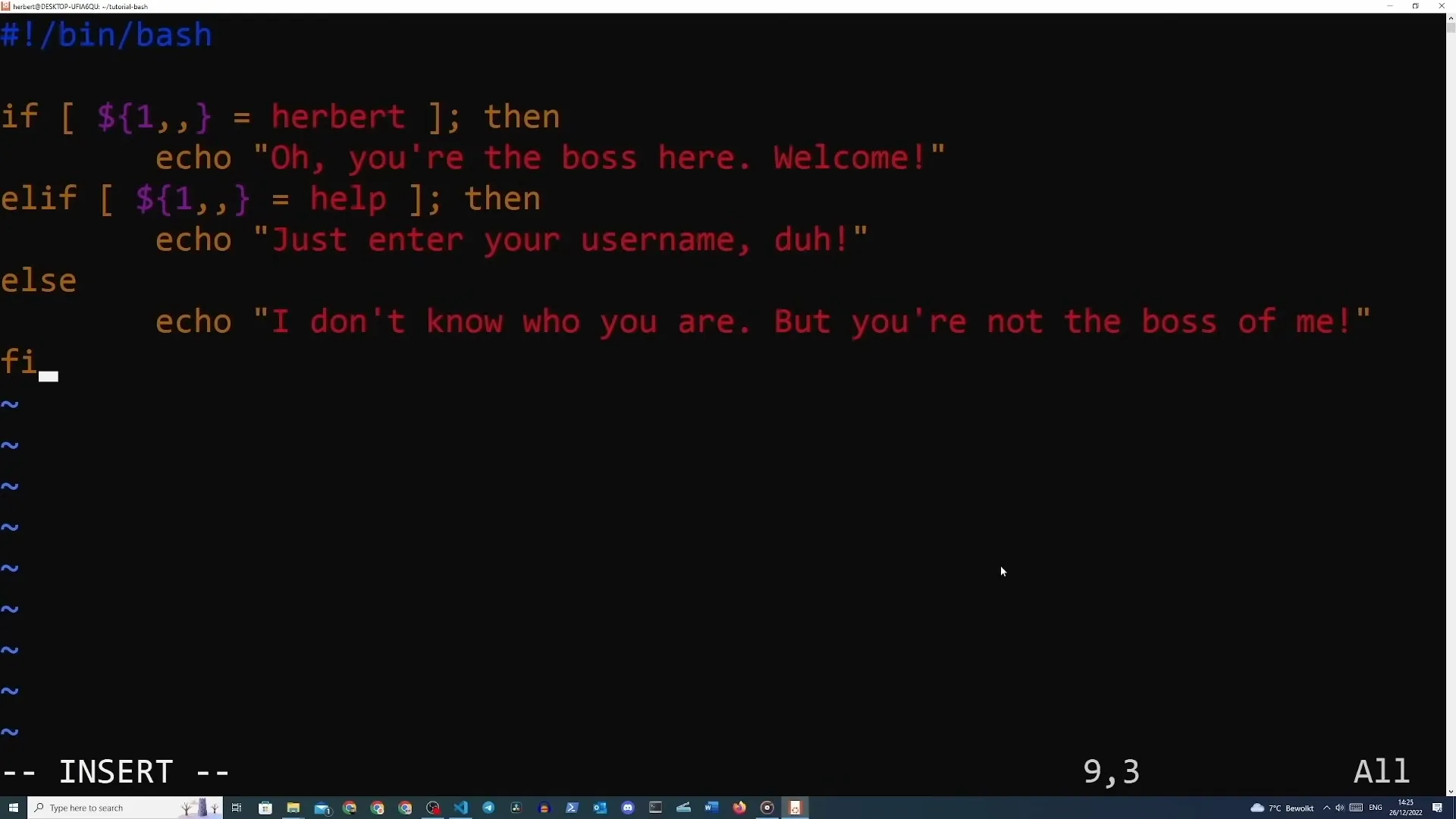
${var,,}to ignore case:[ "${1,,}" = "username" ]
25:00 Numeric Comparison
=or-eqfor numeric equality-eqis safer for numbers (avoids alphabetical characters)- Example:
[ 1 -eq 1 ]returns 0 (true)
26:01 If/Elif/Else Statements
- Structure:
if [ test ]; then action; elif [ test ]; then action; else action; fi ifstarts conditional blockthenspecifies action if test trueeliftests additional conditionselsedefault action if no conditions truefiends block (reversed "if")- Example use case: Login script that checks username
29:17 Case Statements
29:17 Case vs If/Elif/Else
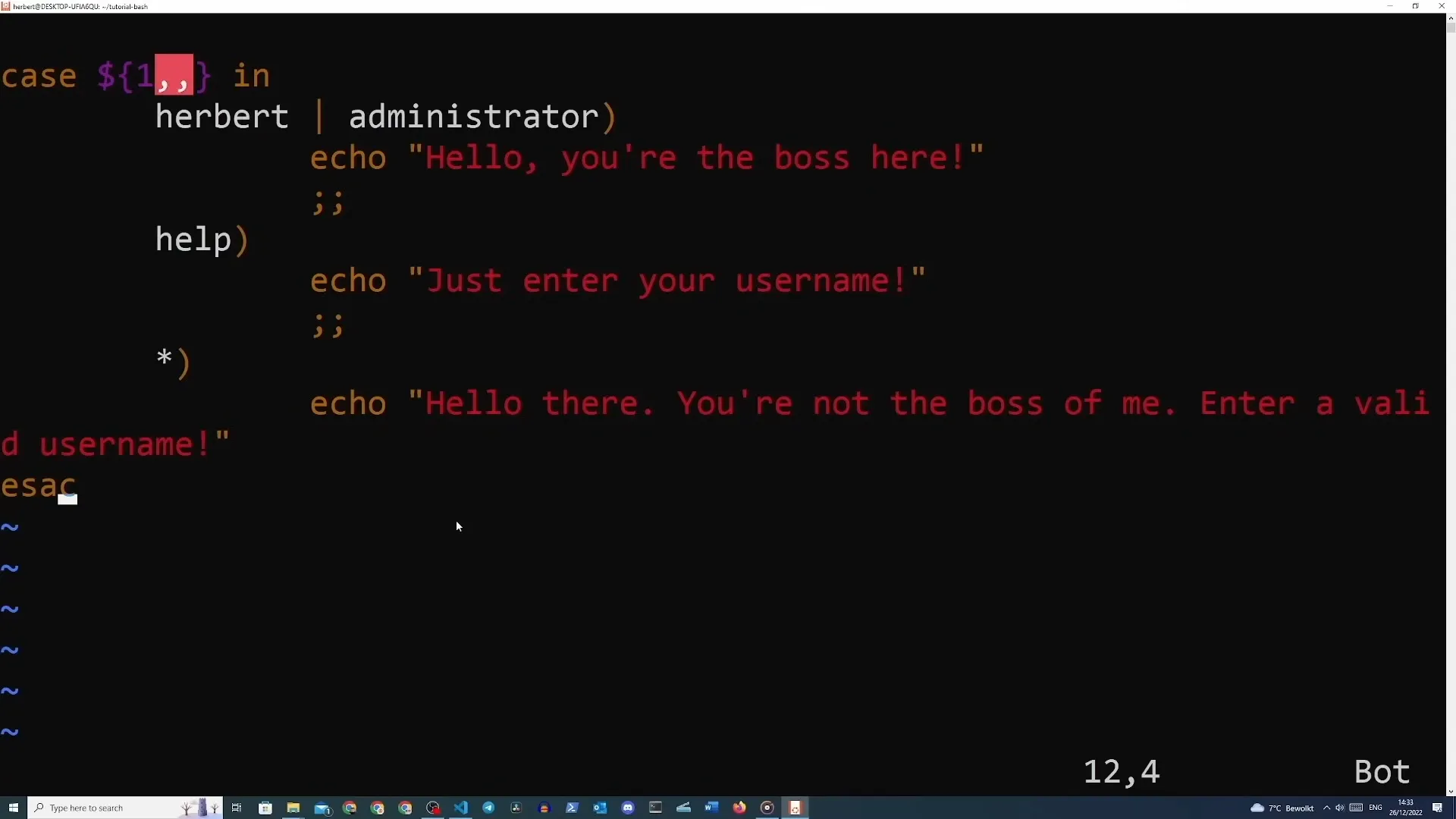
- Better for checking multiple specific values
- More readable when testing against many options
29:49 Case Syntax
- Structure:
case $variable in option1) action;; option2) action;; *) default;; esac - Use
|(pipe) to combine multiple options in one case:option1|option2) action;; *is catch-all/default option (like else)- Close with
;;(double semicolon) - End with
esac(reversed "case")
32:55 Arrays and Loops
32:55 Creating Arrays
- Syntax:
my_array=(1 2 3 4 5) - Space-separated values inside parentheses
- Access element:
${my_array[0]}(first element, index 0) - Print entire array:
${my_array[@]}
34:41 For Loops
- Structure:
for item in ${array[@]}; do action; done itemis loop variable representing current element${array[@]}iterates over entire array- Use
echo -nto suppress newlines when counting characters - Close with
done
36:38 Functions
36:38 Why Use Functions?
- Avoid repeating code blocks
- Reuse specific commands in certain orders
- Run conditional logic multiple times
37:16 Defining Functions
 38:25
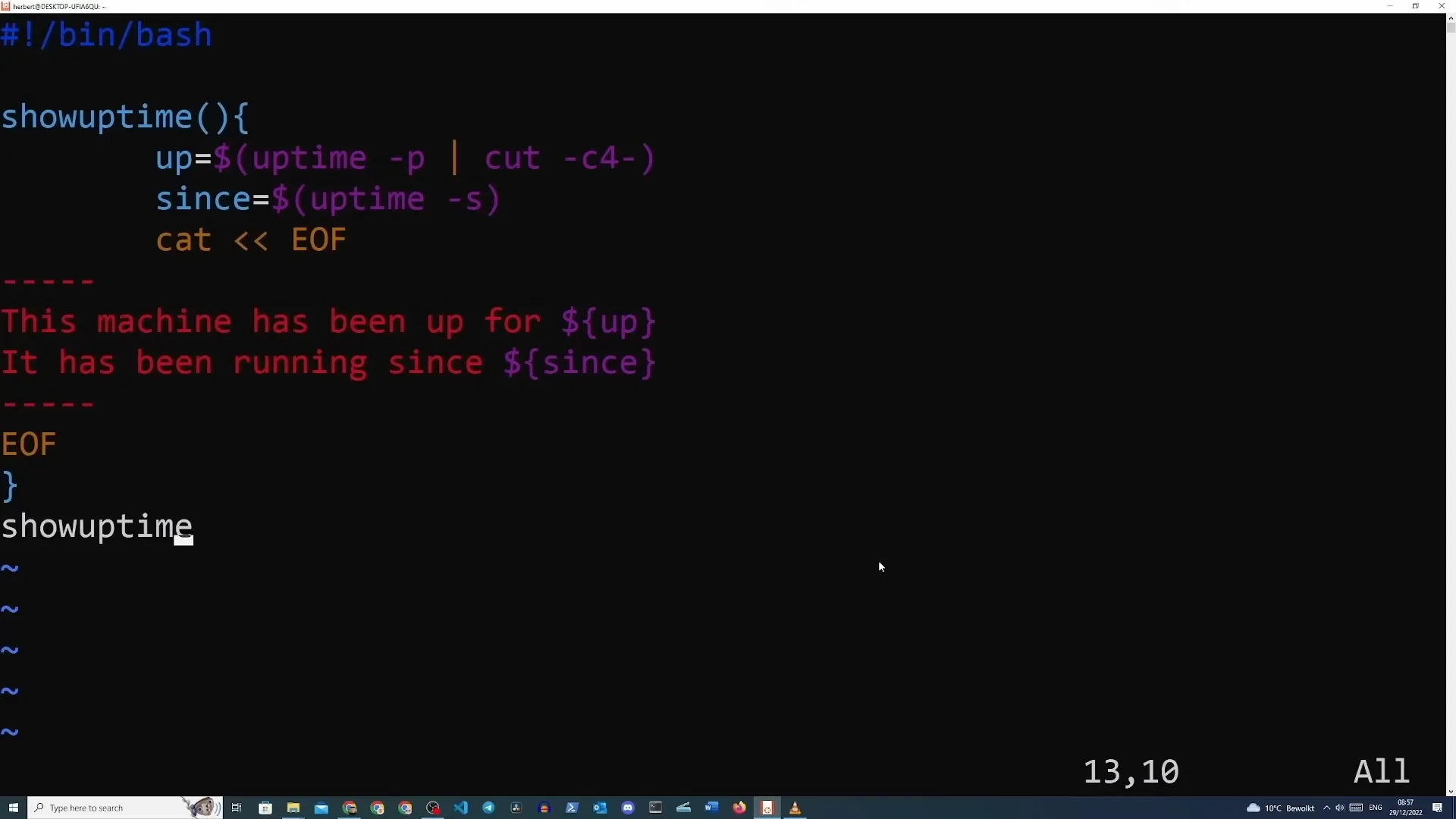
38:25 - Syntax:
function_name() { commands; } - Define function before calling it in script
- Call function by typing its name:
function_name - Capture command output in variable:
var=$(command)
39:32 Local Variables in Functions
- Variables in functions are global by default (accessible throughout script)
- Use
localkeyword to restrict scope:local var=value - Prevents accidentally overwriting global variables
- Best practice for clean code
41:21 Function Parameters
- Functions can accept positional arguments:
my_function $1 $2 - Access with
$1,$2inside function - Can pass script arguments to functions
- Check return value with
$?(0 = success, 1 = failure) - 42:09 Use
returnstatement to set exit code
43:01 Text Processing with Awk
- ⭐: One of the most useful commands
43:01 What is Awk?
- Filters file contents or command output
- Prints specific parts to get desired output format
- Works with space-separated values by default
43:39 Basic Awk Usage
- Syntax:
awk '{print $1}' filename(prints first field) $1= first item,$2= second item, etc.- Separated by spaces by default
- Example:
awk '{print $1}' test.txt
44:19 Using Different Delimiters
- Use
-Fflag to specify field separator - Example for CSV:
awk -F, '{print $1}' test.csv -F,sets comma as delimiter
44:57 Awk with Piped Input
- Pipe command output into awk:
echo "text:hello" | awk -F: '{print $2}' - Filters and reformats output from other commands
- Widely used in bash scripting for data extraction
45:43 Text Replacement with Sed
45:43 What is Sed?
- Sed = Stream Editor
- Modifies values in text files using regular expressions
- Used for find and replace operations
46:15 Sed Syntax
- Structure:
sed 's/find/replace/g' filename s= substitute mode- First
/separates mode from search term - Second
/separates search from replacement g= global (replace all occurrences)- Enclose entire command in single quotes
47:17 Creating Backup Files
- Use
-iflag with suffix:sed -i.original 's/old/new/g' filename - Creates backup file with
.originalextension - Original file gets changes, backup preserves original content
- No space between
-iand suffix
Bash Scripting Tutorial for Beginners
Interactive graph
On this page
Description
Notes
00:00 Course Introduction
01:11 Bash Fundamentals
What is Bash?
01:39 Why Learn Bash?
02:05 Limitations of Bash
03:11 Course Prerequisites and Setup
04:01 Basic Commands
04:01 Echo Command
04:38 Cat Command
05:16 Creating Files with Vim
06:25 Using Cat with Files
07:00 Writing Your First Shell Script
07:00 Creating a Shell Script
09:00 The Shebang
10:27 Making Scripts Executable
12:02 Variables
12:02 Why Use Variables?
13:02 Static Variables
14:28 User Input with Read
15:37 Positional Arguments
17:03 Piping and Output Redirection
17:03 Piping with Pipe Symbol |
18:27 Redirecting Output to Files
20:41 Redirecting Input from Files
24:01 Test Expressions and Conditionals
24:01 Test Command and Square Brackets
24:25 String Comparison
25:00 Numeric Comparison
26:01 If/Elif/Else Statements
29:17 Case Statements
29:17 Case vs If/Elif/Else
29:49 Case Syntax
32:55 Arrays and Loops
32:55 Creating Arrays
34:41 For Loops
36:38 Functions
36:38 Why Use Functions?
37:16 Defining Functions
39:32 Local Variables in Functions
41:21 Function Parameters
43:01 Text Processing with Awk
43:01 What is Awk?
43:39 Basic Awk Usage
44:19 Using Different Delimiters
44:57 Awk with Piped Input
45:43 Text Replacement with Sed
45:43 What is Sed?
46:15 Sed Syntax
47:17 Creating Backup Files